Translate videos
Click Translate in the editor toolbar, choose languages and an engine, and click Translate into N languages. Each language becomes its own video with on-screen text, captions, subtitles and voiceovers translated. You can also translate the current video in place from the Full video panel.
Make translated copies
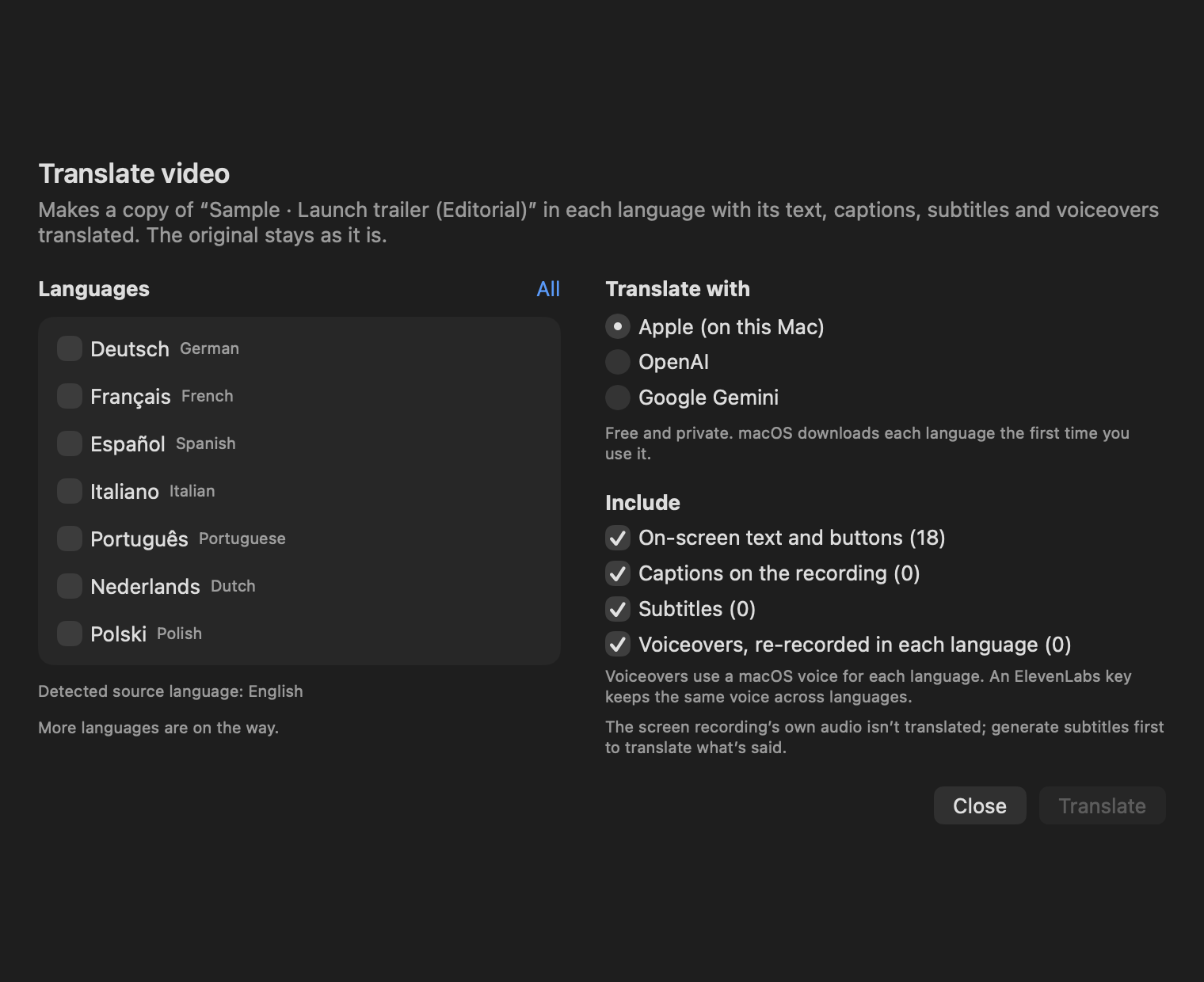
- 1Click Translate in the toolbar, or right-click a video on the home screen and choose Translate….
- 2Tick the Languages: Deutsch, Français, Español, Italiano, Português, Nederlands or Polski.
- 3Choose Translate with: Apple (on this Mac), OpenAI or Google Gemini.
- 4Choose what to Include: on-screen text and buttons, captions, subtitles and voiceovers.
- 5Click Translate into N languages (
⌘↩) and keep the window open.
Copies are named like “Launch demo · Deutsch” and marked with a language badge in your video list. They share media files, so they take almost no extra space.
Translate this video in place
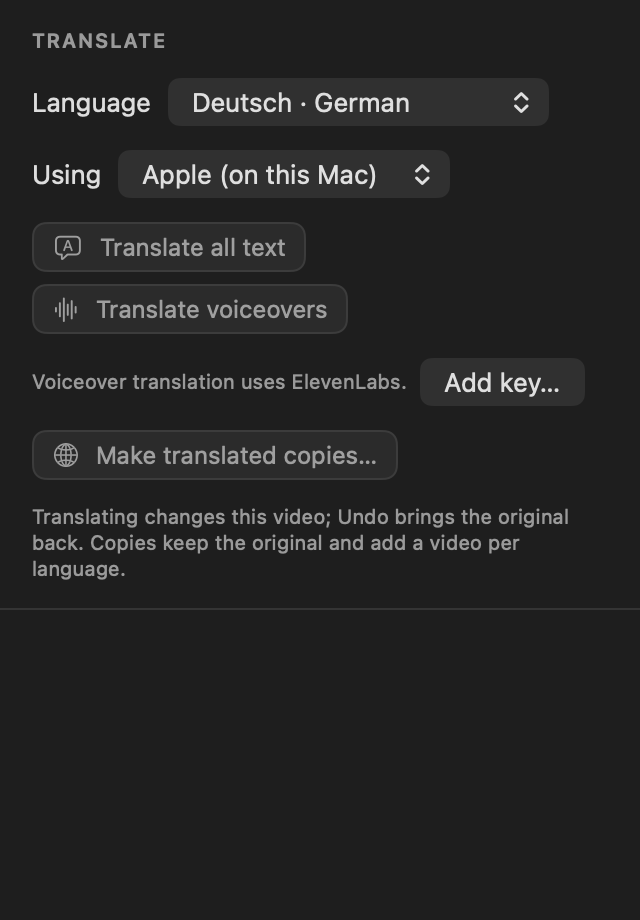
Click Full video, then in Translate choose a Language and engine and click Translate all text or Translate voiceovers. Undo translation restores the original, and Make translated copies… opens the window above.
Engines
| Engine | Notes |
|---|---|
| Apple (on this Mac) | Free and private. macOS downloads each language the first time you use it. |
| OpenAI | Uses your OpenAI API key |
| Google Gemini | Uses your Google Gemini API key |
Voiceovers
Voiceovers are translated and re-recorded. With an ElevenLabs key they keep the same voice; without one, each language uses a macOS voice. Translate voiceovers in the panel needs an ElevenLabs key.
Good to know
- A screen recording's own audio isn't translated. Generate subtitles first to translate what's said.
- Longer translations shrink a text element's font slightly so it stays inside its box.
- Screen Agent's interface is available in English and all seven of these languages.
Related articles
- Subtitles and transcriptIn Subtitles, click Generate from audio to transcribe the voiceover, microphone and audio. Edit and style the lines, export .srt or .vtt, and use Edit by transcript… to cut words, filler words and long pauses.
- Voiceover and musicIn a scene's Voiceover section, write a line and click Generate voiceover, or use Narrate all… to voice every scene in one pass. Add royalty-free music from Add music; it lowers itself while someone speaks.
- App language and feedbackScreen Agent follows your Mac's language. To change it, open Settings → General → Language and click Restart now. To report a problem or ask a question, choose Help → Send Feedback….
Still stuck? In Screen Agent, choose Help → Send Feedback… and pick Question, or browse the help center.