API keys
Open Settings → API Keys (⌘,), paste a key, and click Save and Test. Screen Agent uses your own keys for AI features and adds no markup: ElevenLabs for voices and transcription, OpenAI for GPT Image, and Google Gemini for Gemini and Imagen images and Veo video.
What each key unlocks
| Key | Unlocks | Without it |
|---|---|---|
| ElevenLabs | Natural voiceovers, same-voice translated voiceovers, speech-to-text subtitles | macOS voices and Apple speech recognition |
| OpenAI | GPT Image generation and editing; translation with OpenAI | Not available |
| Google Gemini | Gemini and Imagen images, Veo video; translation with Gemini | Not available |
Translating with Apple's on-device engine doesn't need a key.
Add a key
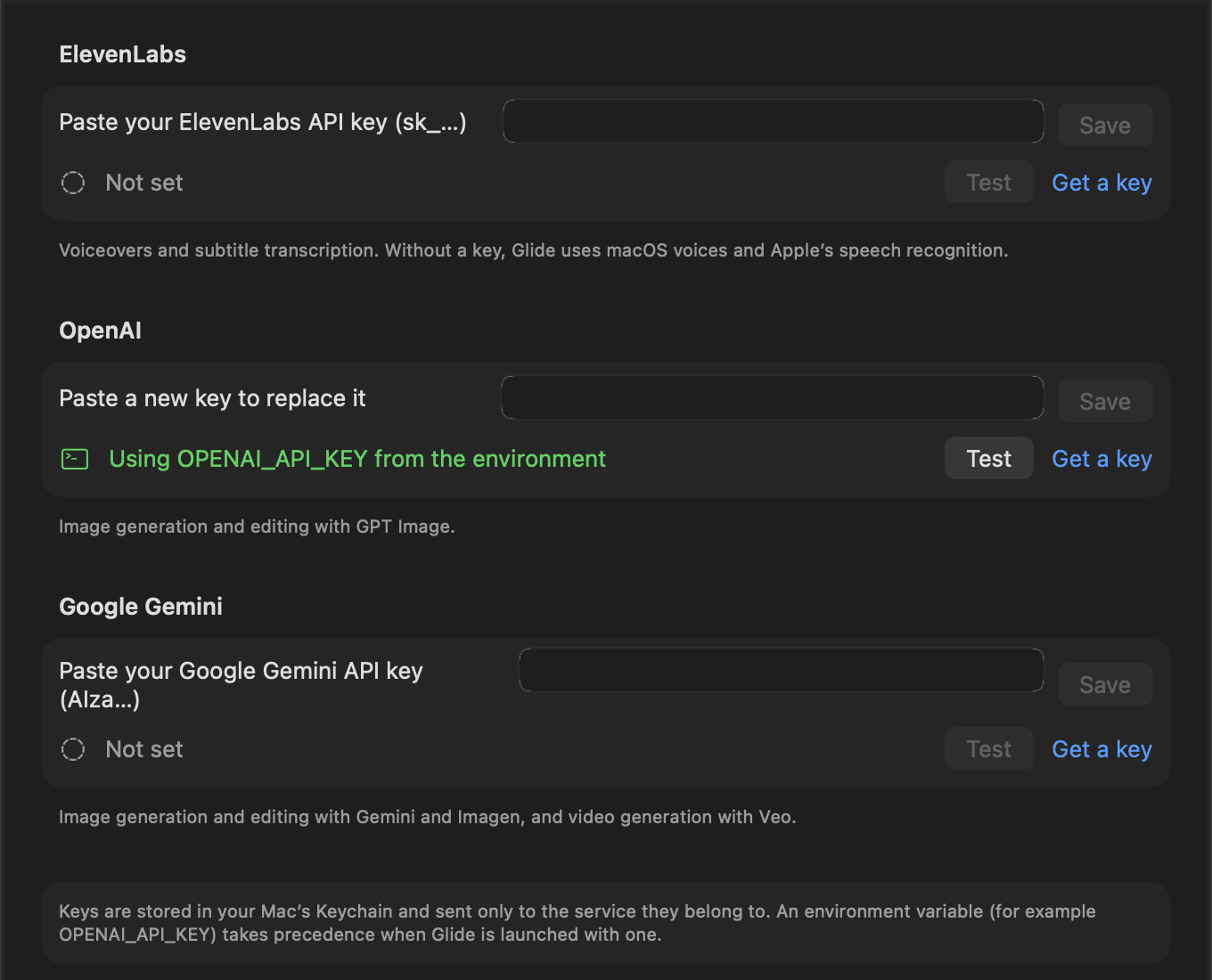
- 1Open Screen Agent → Settings… (
⌘,) and choose API Keys. - 2Click Get a key to open the provider's dashboard and create a key.
- 3Paste it and click Save, then Test. The key works. means you're set.
Privacy
Keys are stored in your Mac's Keychain and sent only to the service they belong to; Screen Agent's servers never see them. Remove deletes a saved key. Usage is billed by each provider on your own account.
Environment variables
If Screen Agent is launched with ELEVENLABS_API_KEY, OPENAI_API_KEY or GEMINI_API_KEY (or GOOGLE_GENERATIVE_AI_API_KEY), that value is used instead of the saved key, and the row shows Using … from the environment.
Related articles
- Generate images and videoChoose Insert → Generate image… or Generate video…, pick a model, write a prompt and click Generate. Results stay in the window so you can compare them; click Add to scene to use one. Select an image and choose Edit with AI… or Animate… to change it or turn it into a video.
- Voiceover and musicIn a scene's Voiceover section, write a line and click Generate voiceover, or use Narrate all… to voice every scene in one pass. Add royalty-free music from Add music; it lowers itself while someone speaks.
- Translate videosClick Translate in the editor toolbar, choose languages and an engine, and click Translate into N languages. Each language becomes its own video with on-screen text, captions, subtitles and voiceovers translated. You can also translate the current video in place from the Full video panel.
Still stuck? In Screen Agent, choose Help → Send Feedback… and pick Question, or browse the help center.