Themes
Open Window → Themes… (⌥⌘T) to browse the built-in themes and create your own. A theme sets colors, heading and body fonts, card corners and motion for every template slide.
Browse themes
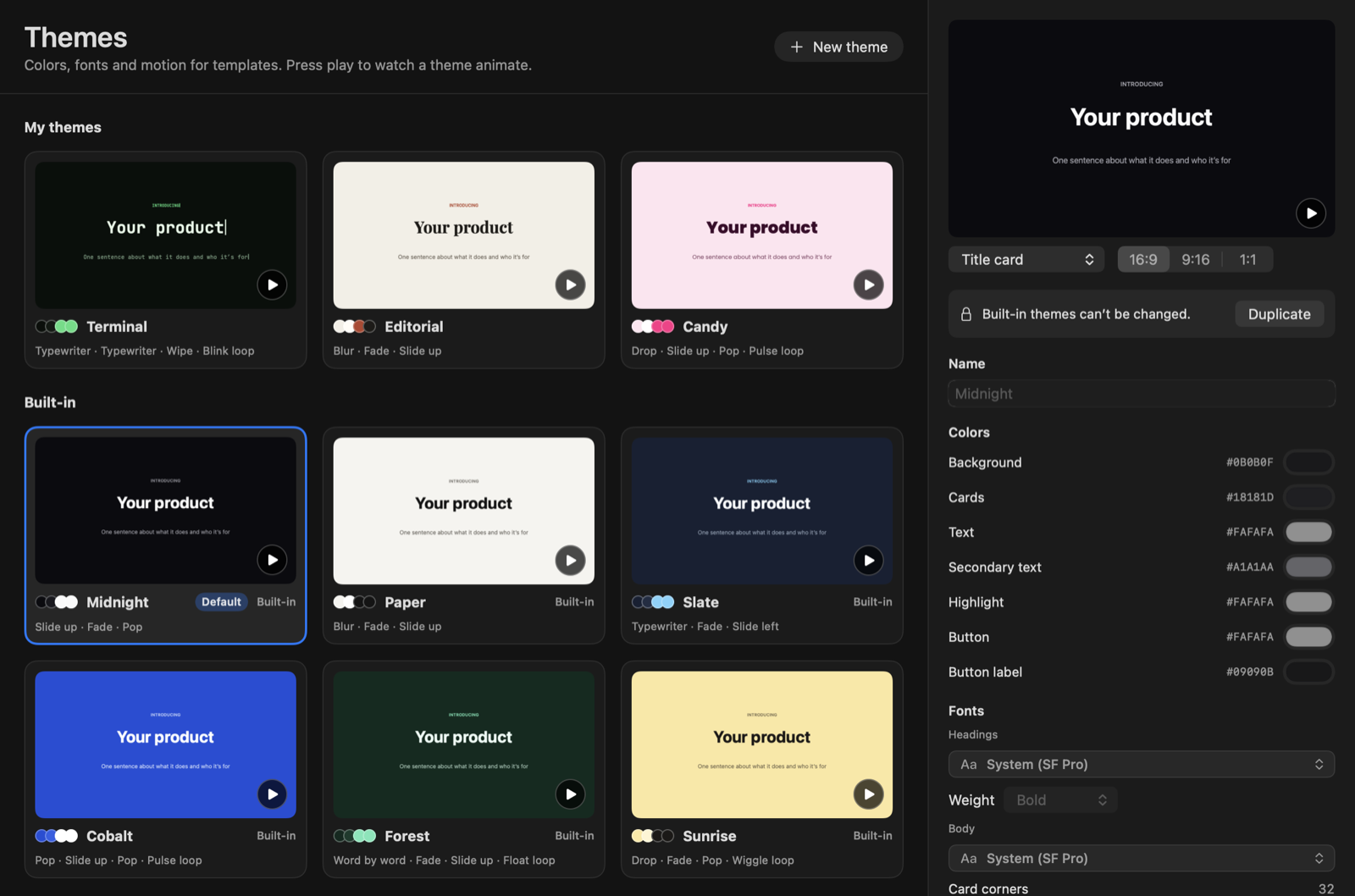
Built-in themes are Midnight, Paper, Slate, Cobalt, Forest and Sunrise. Press play on a card to watch it animate, and right-click a theme to Play, Make default, Duplicate or Delete…. You can also open themes from Themes on the home screen.
Create a theme
- 1Click New theme to copy the selected theme, or select a built-in theme and click Duplicate.
- 2Rename it in Name. Changes save automatically.
- 3Preview it on any scene template at 16:9, 9:16 or 1:1 with the menus above the settings.
NoteBuilt-in themes can't be changed. Deleting a theme doesn't change scenes you already made with it.
Theme settings
| Group | Settings |
|---|---|
| Colors | Background, Cards, Text, Secondary text, Highlight, Button, Button label |
| Fonts | Headings and body in any Google Font, with a heading Weight |
| Card corners | 0–60, default 32 |
| Motion | Entrances for Headlines, Body text and Cards & buttons, Easing, Speed (0.5×–2×), Stagger (0–0.6 s) and an Accent loop |
Related articles
- TemplatesOpen Insert → Scene templates… or Video templates…, type your words, pick a theme and click Add scene or Use template…. A video template adds intro and outro slides and restyles the video, while keeping your recording, cuts, zooms and audio.
- Animation and keyframesSelect an element and scroll to Animate. Start with an Entrance, Exit or Loop preset, add keyframes with the ◆ buttons or Record keyframes, and open Advanced for motion paths, expressions, sound reactions, parenting and effects.
Still stuck? In Screen Agent, choose Help → Send Feedback… and pick Question, or browse the help center.