Animation and keyframes
Select an element and scroll to Animate. Start with an Entrance, Exit or Loop preset, add keyframes with the ◆ buttons or Record keyframes, and open Advanced for motion paths, expressions, sound reactions, parenting and effects.
Entrance, exit and loop
| Setting | Options |
|---|---|
| Entrance / Exit | None, Fade, Slide up/down/left/right, Zoom in, Zoom out, Pop, Drop, Spin, Blur, Wipe, Typewriter, Word by word |
| Timing | Entrance Duration (0.1–6 s) and Delay; exit duration 0.1–3 s |
| Easing | Auto, Smooth, Snappy, Linear, Spring or Bounce |
| Loop | None, Pulse, Float, Wiggle, Spin or Blink, with Cycle and Intensity. Loops start after the entrance. |
Keyframes
- 1Move the playhead to where a change should happen.
- 2Click ◆ next to a property, such as Position, Scale, Rotation or Opacity, to keyframe its current value. Or turn on Record keyframes and just move, resize or change things.
- 3Move the playhead and change the value again. Screen Agent animates between the keyframes.
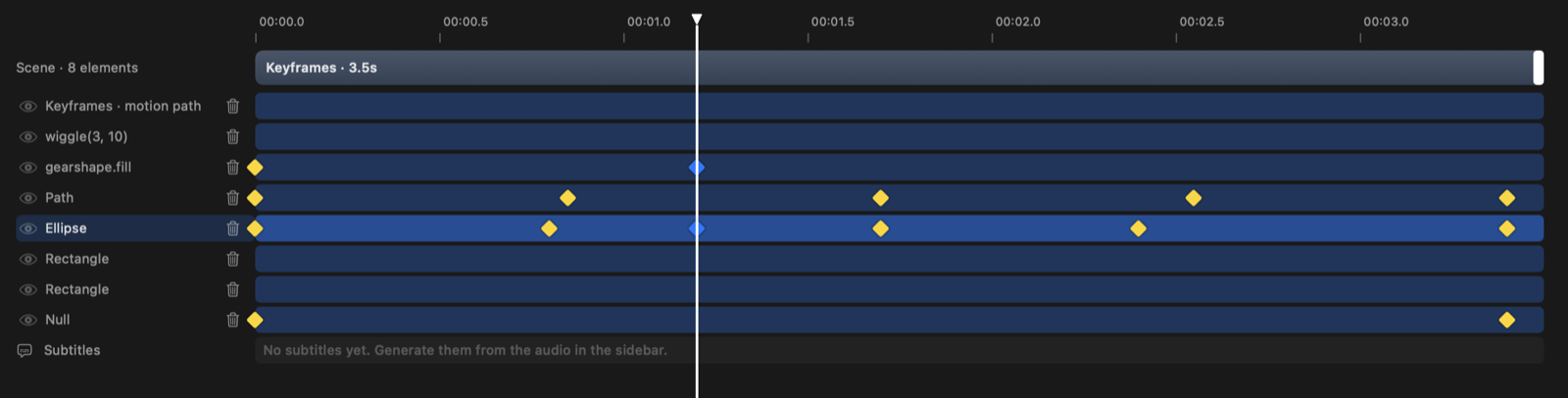
On the timeline, click a diamond to jump to it, drag it to retime it, or right-click it for easing and Delete keyframe. After the last keyframe can play Once, Loop or Ping-pong.
Easing curves
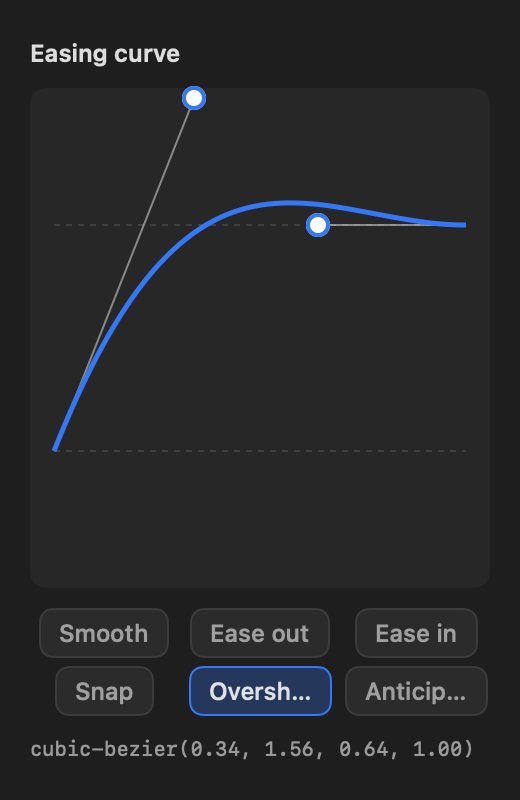
Set easing from a keyframe: Linear, Smooth, Ease in, Ease out, Hold, Spring, Bounce, or Curve… for a custom cubic-bezier curve with presets like Overshoot and Anticipate.
Advanced
| Setting | What it does |
|---|---|
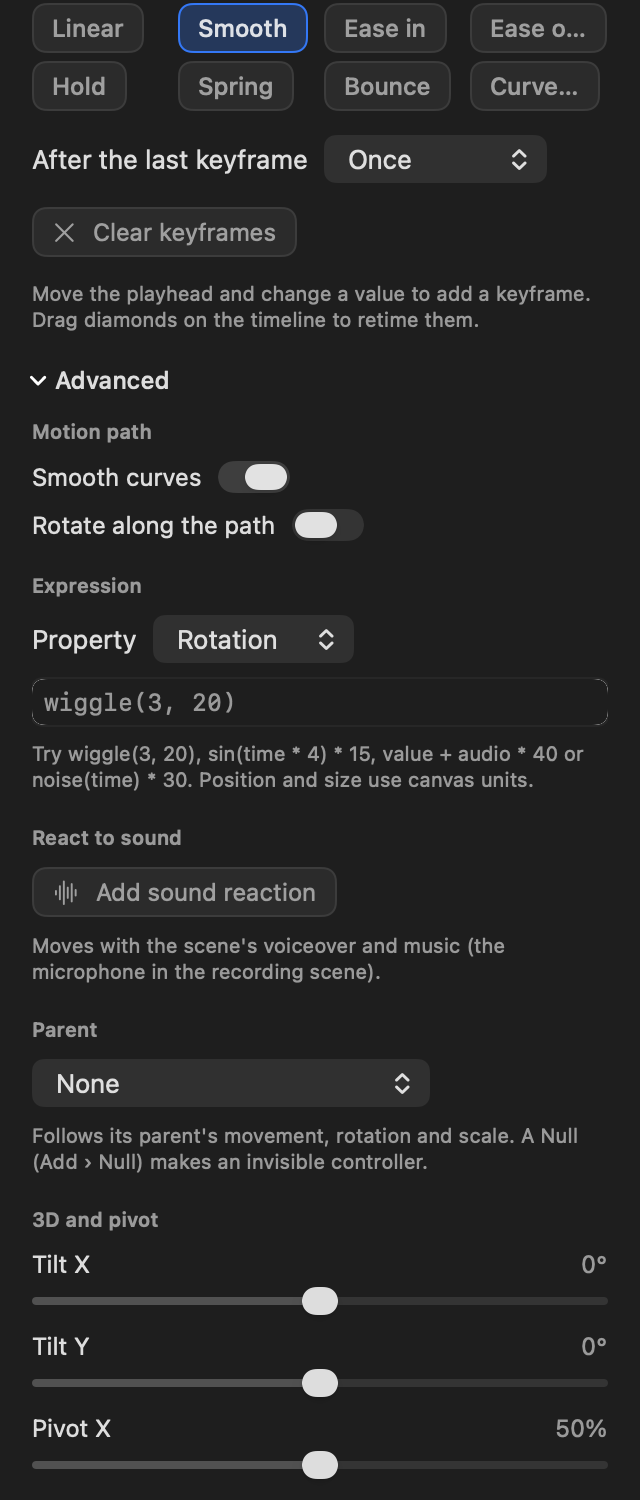
| Motion path | With 2 or more position keyframes, drag points on the canvas; Smooth curves and Rotate along the path |
| Expression | Drive a property with math, such as wiggle(3, 20), sin(time * 4) * 15 or value + audio * 40 |
| React to sound | Scale, rotation, position, opacity, glow, blur, tilt, trim or letter spacing follow the voiceover, music or all sound |
| Parent | Follow another element's movement, rotation and scale; use a Null (controller) as an invisible handle |
| 3D and pivot | Tilt X, Tilt Y and the pivot point |
| Look | 17 blend modes, Blur and Glow |
| Mask and matte | A rectangle or ellipse mask with feather, or another element as an alpha or luma matte |
| Repeater | 2–24 copies with offset, rotation, scale, fade and stagger |
Expression reference
Variables: value, time (or t), audio, index, axis, frame, pi and e. Functions include sin, cos, tan, abs, sqrt, pow, min, max, clamp, mix, step, smoothstep, random, noise, wiggle(freq, amp) and linear or ease(t, tMin, tMax, v1, v2). Errors show in red under the field.
Related articles
- Text effectsSelect a text element to set its font, size, weight and alignment, then use Text effects for gradient fills, outlines, 3D depth, letter spacing, per-letter animation and text on a path.
- Paths, particles and backgroundsAdd a Path preset or draw with the pen, then trim it to animate it drawing on. Add Particles such as confetti or sparkles, import SVG or Lottie, and give scenes animated gradient, noise and film-grain backgrounds.
- ThemesOpen Window → Themes… (⌥⌘T) to browse the built-in themes and create your own. A theme sets colors, heading and body fonts, card corners and motion for every template slide.
Still stuck? In Screen Agent, choose Help → Send Feedback… and pick Question, or browse the help center.