Generate images and video
Choose Insert → Generate image… or Generate video…, pick a model, write a prompt and click Generate. Results stay in the window so you can compare them; click Add to scene to use one. Select an image and choose Edit with AI… or Animate… to change it or turn it into a video.
Generate an image
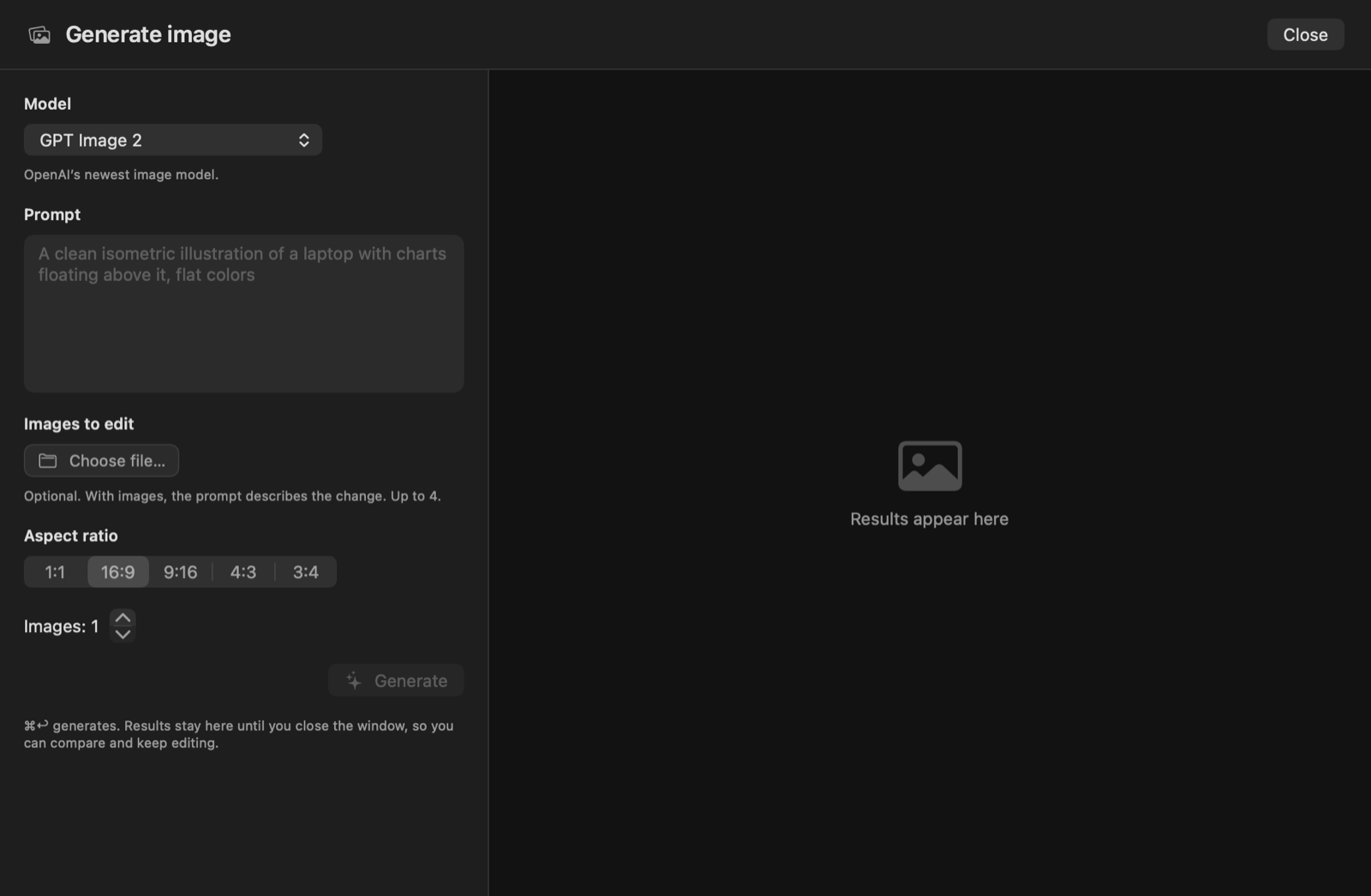
- 1Select a scene, then choose Insert → Generate image….
- 2Pick a Model and write a Prompt.
- 3Choose an Aspect ratio (1:1, 16:9, 9:16, 4:3 or 3:4) and how many Images (1–4).
- 4Click Generate (
⌘↩), then Add to scene, Save… or Edit this image.
Edit an image with AI
Select an image element and click Edit with AI…, or add up to 4 images under Images to edit. Describe the change, such as “make the background a soft gradient”, and click Edit image. Replace image swaps the result into your scene.
Generate a video
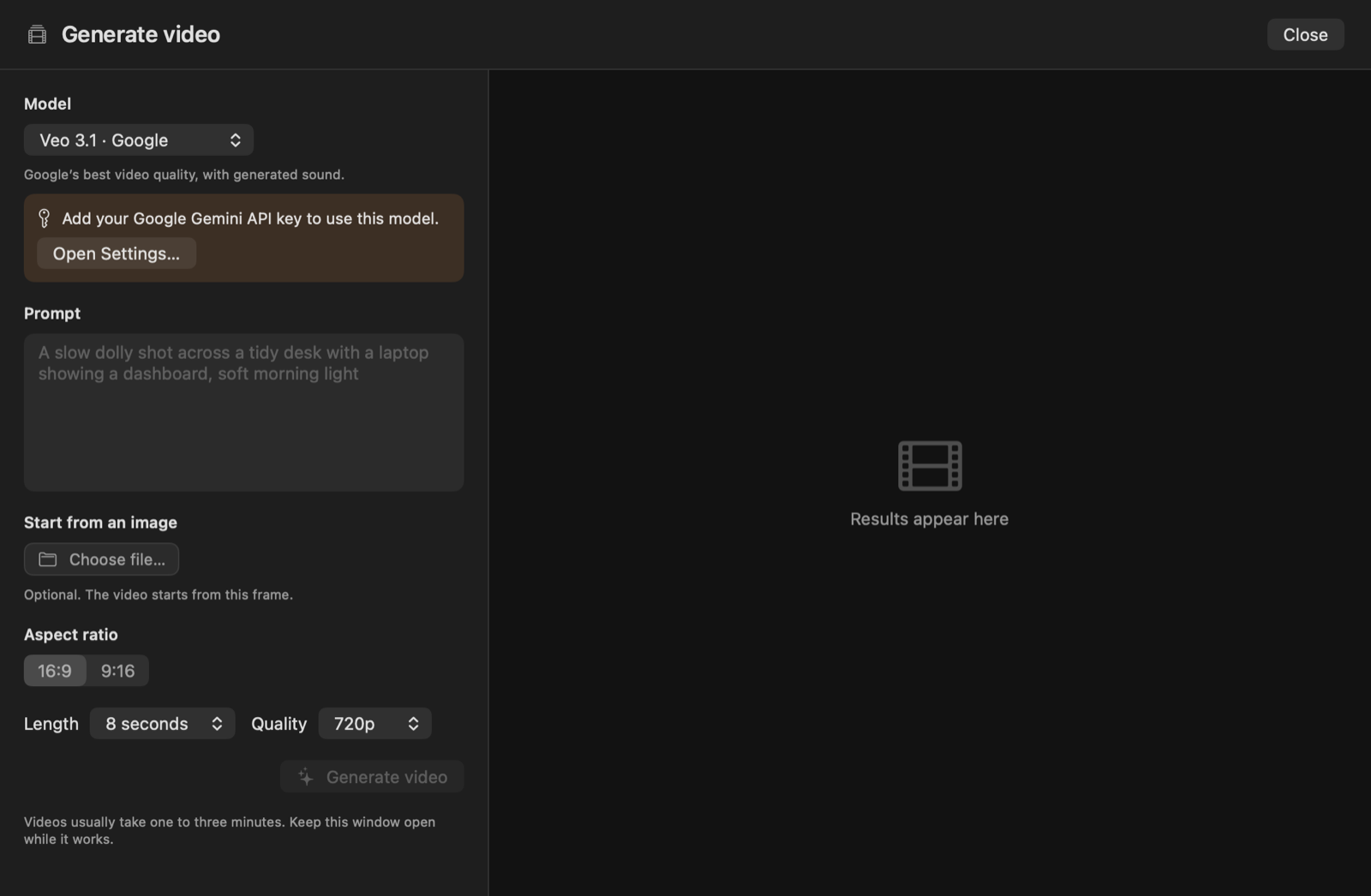
- 1Choose Insert → Generate video…, or select an image and click Animate….
- 2Pick a Veo model, write a prompt, and optionally Start from an image.
- 3Choose 16:9 or 9:16, a Length and Quality, then click Generate video.
Videos usually take one to three minutes. Keep the window open while it works.
Models
| Model | Provider | Notes |
|---|---|---|
| GPT Image 1.5, GPT Image 2, GPT Image 1, GPT Image 1 Mini | OpenAI | Generate and edit, with several source images |
| Gemini 2.5 Flash Image, Gemini 3 Pro Image (preview) | Generate and edit | |
| Imagen 4, Imagen 4 Ultra, Imagen 4 Fast | Generate only | |
| Veo 3.1 Fast, Veo 3.1 | 4, 6 or 8 seconds, 720p or 1080p, with sound | |
| Veo 2 | 5–8 seconds, 720p, silent |
Keys and costs
Generation runs on your own OpenAI or Google Gemini key and is billed by the provider at their prices. Without the right key, the window shows Add your … API key to use this model with Open Settings….
Related articles
- API keysOpen Settings → API Keys (⌘,), paste a key, and click Save and Test. Screen Agent uses your own keys for AI features and adds no markup: ElevenLabs for voices and transcription, OpenAI for GPT Image, and Google Gemini for Gemini and Imagen images and Veo video.
- Scenes and elementsA Screen Agent video is a sequence of scenes: the recording scene and design scenes (slides). Add scenes with + in the scene strip, and add text, buttons, shapes, icons, images, videos, paths, particles, SVG or Lottie from Insert or the Add section.
- Translate videosClick Translate in the editor toolbar, choose languages and an engine, and click Translate into N languages. Each language becomes its own video with on-screen text, captions, subtitles and voiceovers translated. You can also translate the current video in place from the Full video panel.
Still stuck? In Screen Agent, choose Help → Send Feedback… and pick Question, or browse the help center.